
Guardrail
Moderators let you control what type of content your agents can allow, review, or block. You can create moderation rules, organize them into types and topics, and then assign these rules to any agent.
1. Overview
The Guardrail system uses moderators to enforce content policies across your agents. Moderators consist of:
- Types: Categories that group related moderation topics (e.g., Abuse, PII, Text Moderation)
- Topics: Specific checks within a type that define what the system evaluates (e.g., Violence, Harassment, Email, PhoneNumber)
- Rules: The actual moderation logic that determines whether content is allowed, reviewed, or blocked
Once configured, moderators can be assigned to agents to automatically filter and moderate conversations based on your defined rules.
2. Access Moderators
To access Moderators:
Step 1: Select your profile icon in the top right corner.
Step 2: Select Admin Mode from the dropdown menu.
Step 3: Under Administration, select Moderators.
You'll be taken to the Moderators page where you can view, create, and manage all moderators in your workspace.
3. Moderators Page
The Moderators page displays all existing moderators and provides tools to manage them.
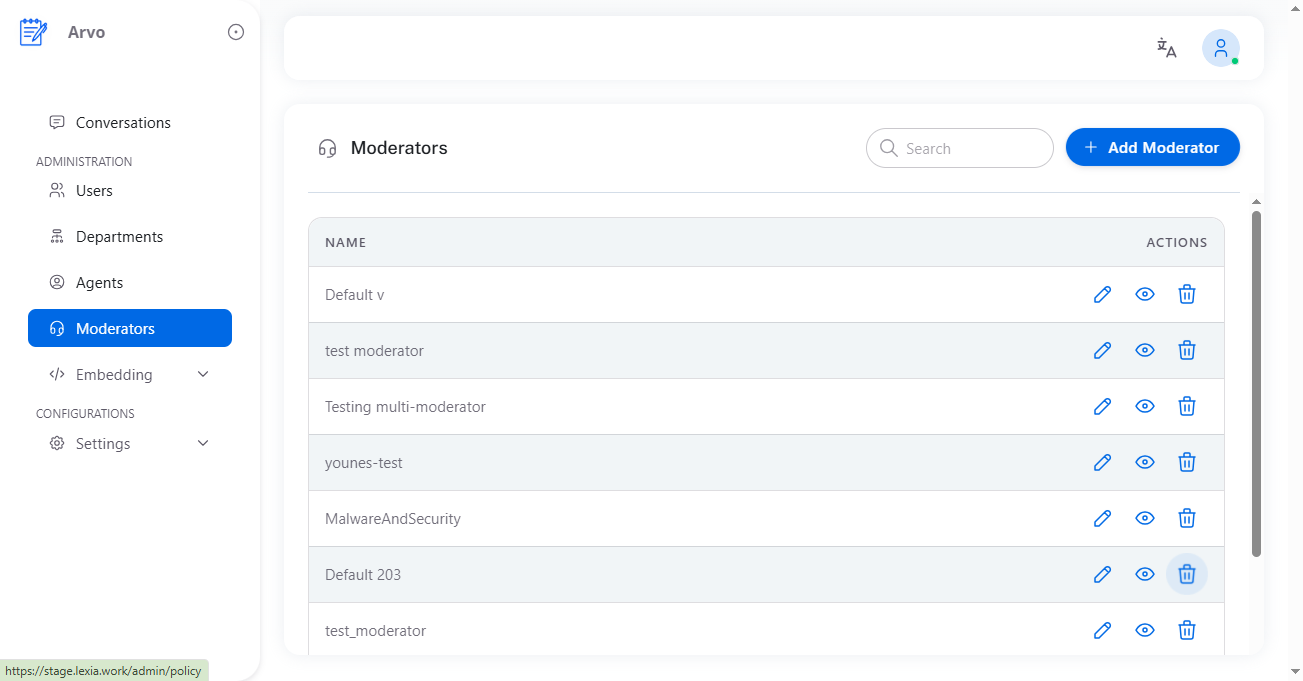 Image: Moderators page showing the list of moderators with search functionality and action buttons
The page includes:
| Element | Description |
|---|---|
| Search field | Filter moderators by name or other attributes |
| Add Moderator button | Create a new moderator |
| Moderators list | Displays all existing moderators with their names |
| Actions column | Quick actions for each moderator: ✏️ Edit, 👁️ View, 🗑️ Delete |
Each moderator row shows its name and the available actions you can perform.
4. Add Moderator
To create a new moderator:
Step 1: On the Moderators page, select Add Moderator.
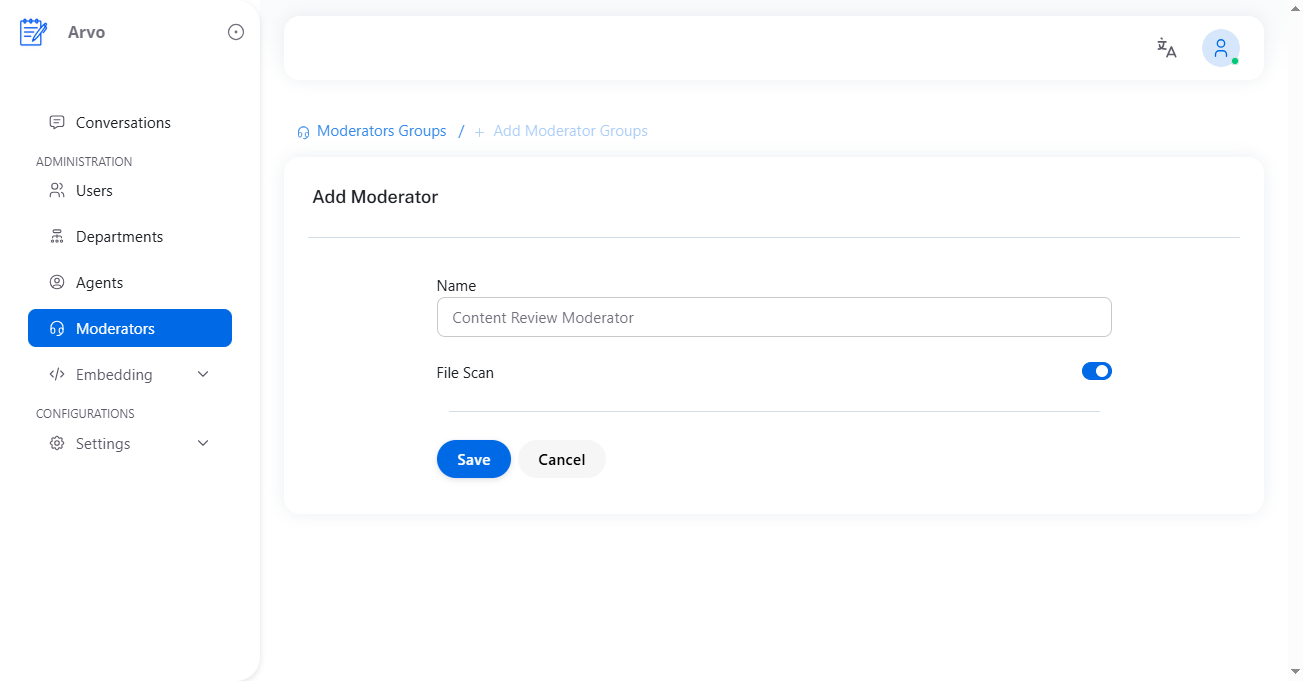 Image: Add Moderator form showing name field and File Scan toggle
Step 2: Fill in the form fields:
-
Name: Enter a descriptive name for the moderator (e.g., "Content Safety Moderator", "PII Protection")
-
File Scan toggle: Enable this option to allow the moderator to check uploaded files and evaluate them against the rules defined within that moderator.
Step 3: Select Save to create the moderator, or Cancel to discard your changes.
The new moderator will appear in the moderators list and can be configured with types and topics.
5. Edit Moderator
To modify an existing moderator:
Step 1: On the Moderators page, select ✏️ Edit under the Actions column for the moderator you want to modify.
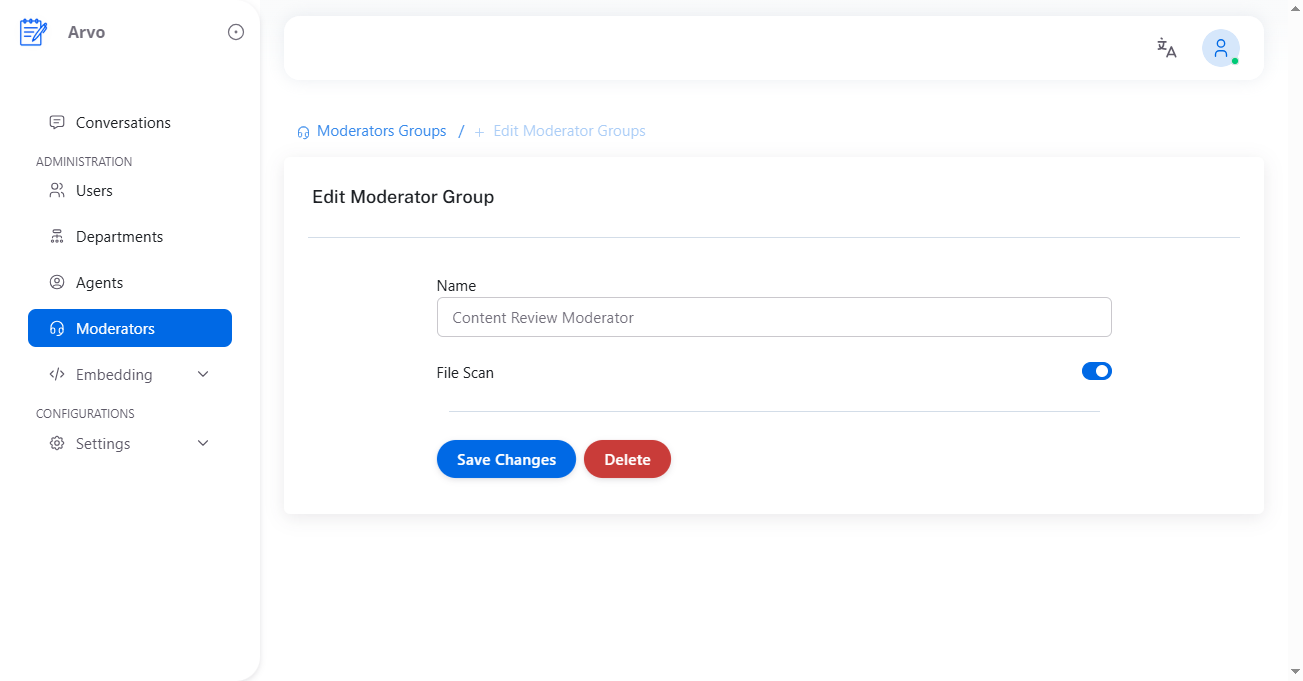 Image: Edit Moderator form showing current settings with options to update name and File Scan
Step 2: Update the moderator settings:
- Name: Change the moderator's name
- File Scan: Enable or disable file scanning for this moderator
Step 3: Select Save Changes to apply the updates, or Delete to remove the moderator entirely.
Changes take effect immediately for all agents using this moderator.
6. Delete Moderator
To remove a moderator from your workspace:
Step 1: On the Moderators page, select 🗑️ Delete under the Actions column for the moderator you want to remove.
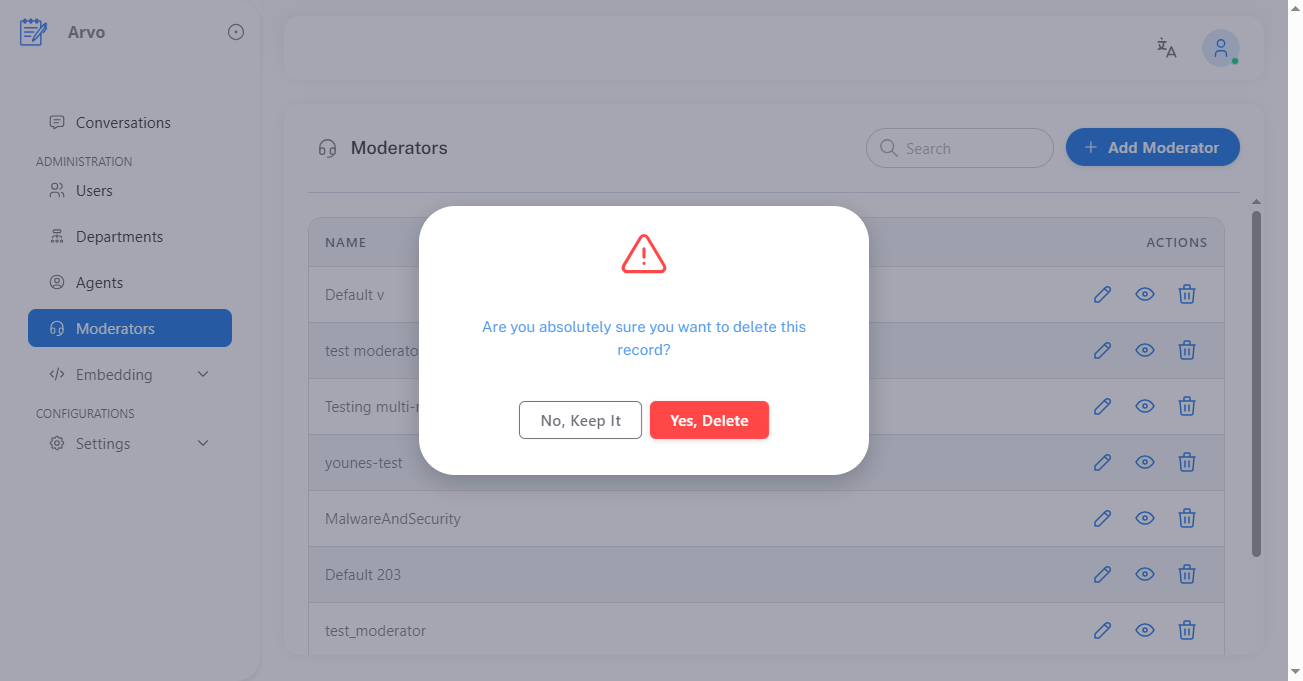 Image: Delete confirmation modal with options to keep or delete the moderator
Step 2: A confirmation modal will appear with the message:
Are you absolutely sure you want to delete this record
Step 3: Choose one of the following options:
- No, Keep It: Cancel the deletion and return to the Moderators page
- Yes, Delete: Confirm the deletion and permanently remove the moderator
Warning: Deleting a moderator will remove it from all agents that are currently using it. Make sure to reassign moderators to affected agents before deletion.
7. View Moderator
To view and manage a moderator's types and topics:
Step 1: On the Moderators page, select 👁️ View under the Actions column for the moderator you want to view.
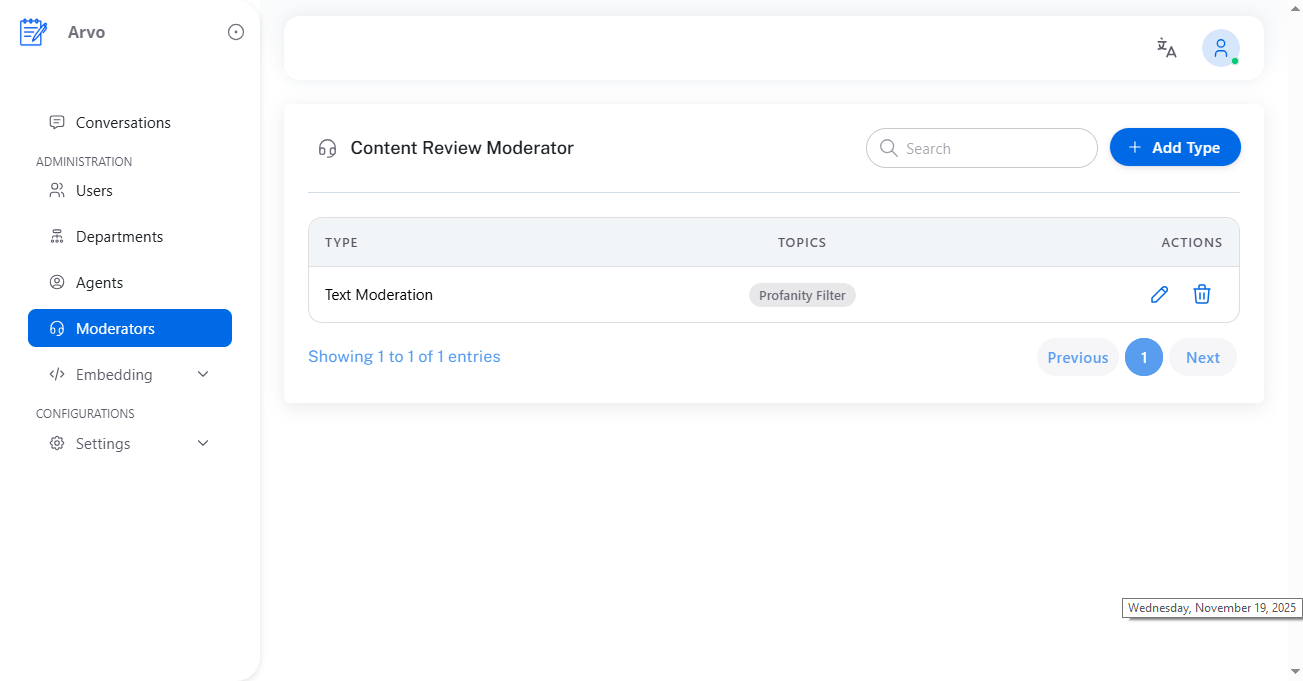 Image: Moderator view page showing types list with search and Add Type button
The moderator view page displays:
| Element | Description |
|---|---|
| Search field | Filter types by name |
| Add Type button | Create a new type for this moderator |
| Types list | All types assigned to this moderator |
| Topics column | Shows the number of topics in each type |
| Actions column | Edit or delete options for each type |
If no types exist for the moderator, the page displays an empty state with instructions to add your first type.
8. Add Type
Types organize related moderation topics. For example, you might have types like "Abuse", "PII", or "Text Moderation".
To add a type to a moderator:
Step 1: On the moderator view page, select Add Type.
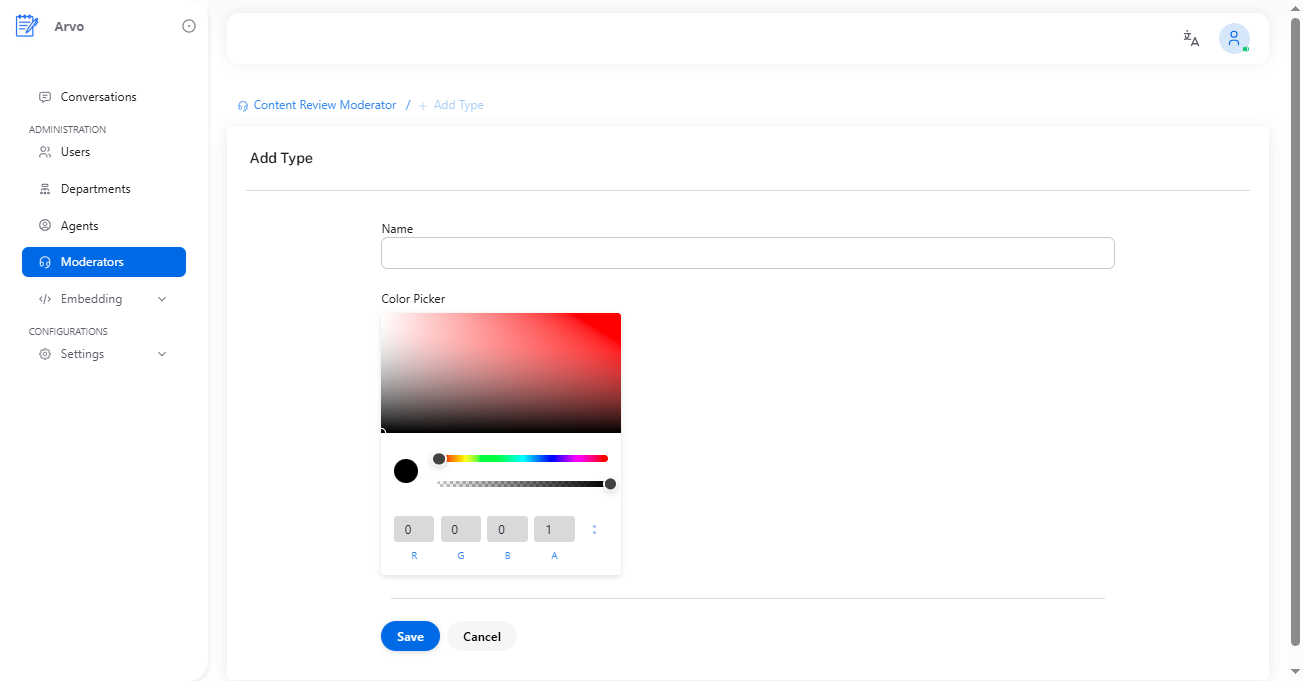 Image: Add Type form showing name field and color picker
Step 2: Fill in the form fields:
-
Name: Enter a descriptive name for the type (e.g., "Abuse", "PII", "Text Moderation")
-
Color Picker: Select a color to assign as a tag color for this type. This helps visually distinguish types in the interface.
Step 3: Select Save to create the type, or Cancel to discard your changes.
The new type will appear in the types list and you can begin adding topics to it.
9. Edit or Delete Type
Each type in the moderator view page has action options:
Edit Type
Step 1: Select ✏️ Edit next to the type you want to modify.
Step 2: You'll be redirected to the type page, where you can view and manage all topics within that type.
From the type page, you can add, edit, or delete topics, and modify the type's settings.
Delete Type
Step 1: Select 🗑️ Delete next to the type you want to remove.
Step 2: A confirmation modal will appear:
Are you absolutely sure you want to delete this record
Step 3: Choose:
- No, Keep It: Cancel the deletion
- Yes, Delete: Confirm and permanently remove the type
Note: Deleting a type will also remove all topics within that type. This action cannot be undone.
10. Topics
Topics belong to a specific type and define what the system checks for under that type. Each topic represents a specific moderation rule or check.
Topic Examples
Different types contain different topics:
| Type | Example Topics |
|---|---|
| Abuse | Violence, Harassment, Sexual Harassment |
| PII | Email, PhoneNumber, Address |
| Text Moderation | Profanity Filter |
Each topic appears in the type page with:
- Name: The topic identifier
- Description: What the topic checks for
- Examples: Sample content that would trigger this topic
- Actions: Edit or delete options
11. Edit Topic
To modify an existing topic:
Step 1: On the type page, select ✏️ Edit beside the topic you want to modify.
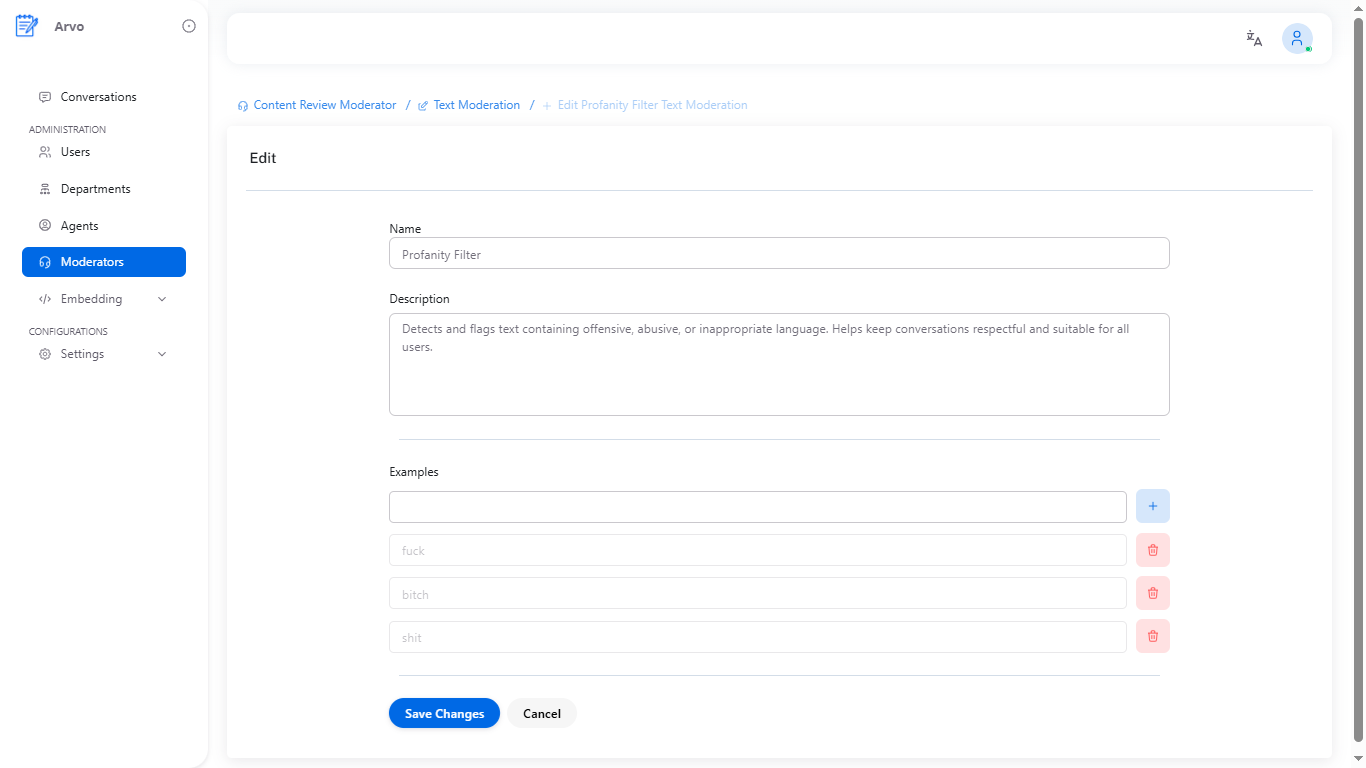 Image: Edit Topic form showing name, description, and examples fields
Step 2: Update the topic settings:
- Name: Change the topic's name
- Description: Update what the topic checks for
- Examples: Add or remove examples
- Use the + button to add new examples
- Use the 🗑️ button to remove existing examples
Step 3: Select Save Changes to apply the updates, or Cancel to discard your changes.
Examples help clarify what content will trigger this topic and are useful for training and documentation purposes.
12. Delete Topic
To remove a topic:
Step 1: On the type page, select 🗑️ Delete beside the topic you want to remove.
Step 2: A confirmation modal will appear:
Are you absolutely sure you want to delete this record
Step 3: Choose:
- No, Keep It: Cancel the deletion
- Yes, Delete: Confirm and permanently remove the topic
The topic will be immediately removed from the type and will no longer be evaluated by the moderator.
13. Assign Moderator to an Agent
Once a moderator is created and configured with types and topics, you can assign it to an agent to enforce moderation rules.
Step 1: In Admin Mode, navigate to Agents under the Administration section.
Step 2: Select ✏️ Edit under the Actions column for the agent you want to configure.
 Image: Agent edit form showing configuration options including Moderator toggle
Step 3: Scroll to the Agent Configuration section.
Step 4: Turn on the Moderator toggle to enable moderation for this agent.
Step 5: Select a moderator from the dropdown list. Only moderators that have been created and configured will appear in this list.
Step 6: Select Save Changes to apply the configuration.
Agents with a moderator enabled will automatically follow the rules defined in the selected moderator. All conversations with that agent will be evaluated against the moderator's types and topics, and content that violates the rules will be blocked, flagged, or handled according to your configuration.