
Getting Started
Build, connect, and run your first Lexia agent locally — in just a few minutes.

1. Introduction
Lexia lets you build AI agents quickly without worrying about infrastructure.
In this guide, you'll:
- Set up the CLI
- Create your first agent
- Run and test it locally
2. Prerequisites
Before starting, make sure you have:
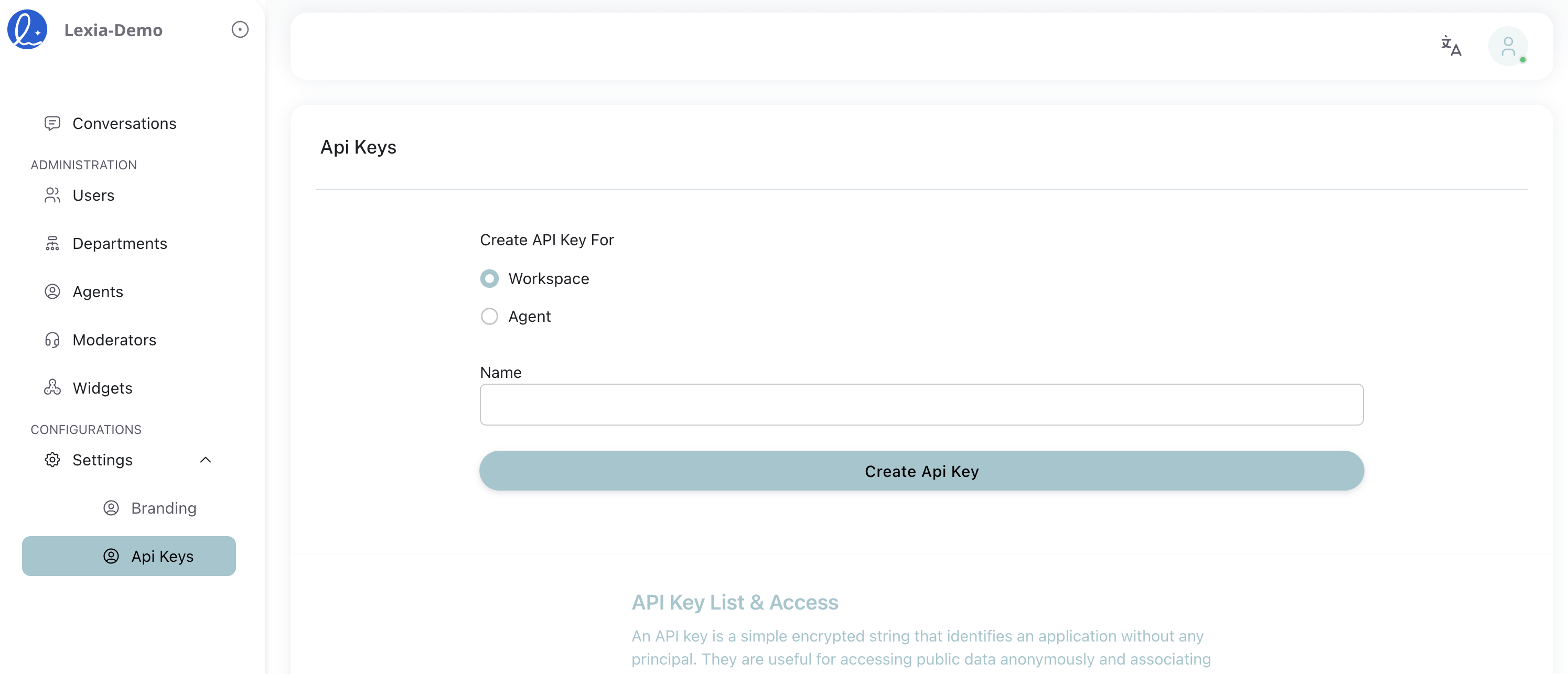
- A Lexia account → Sign up here
- Lexia CLI installed
npm install -g @lexia/cli - A valid API Key (from your Lexia workspace)
- A working environment:
- Python 3.8+ (for Python agent) or Node.js 14+ (for Node.js agent)
- Git (for cloning starter kit)
- npm (for installing dependencies)
3. Step-by-Step Setup
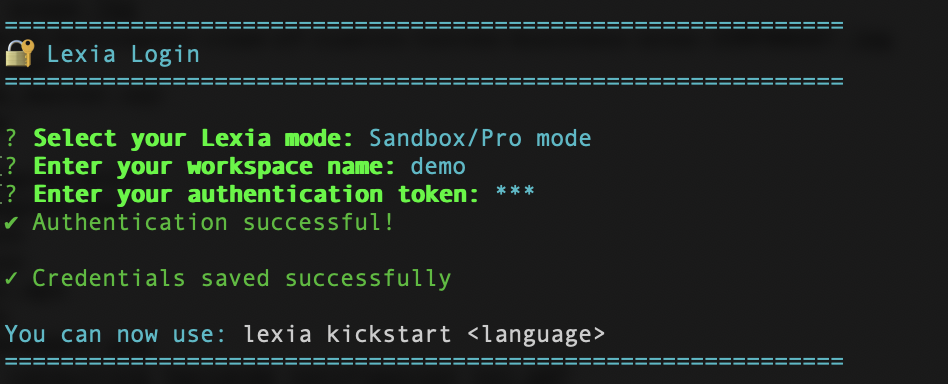
Step 1: Log in to Lexia
lexia login
Authenticate using your Lexia token or workspace credentials.
Step 2: Create Your First Agent
Choose your preferred language to create a new agent:
Python (FastAPI + OpenAI):
lexia kickstart python
→ View Python Starter Kit on GitHub
Node.js (Express + OpenAI):
lexia kickstart node
→ View Node.js Starter Kit on GitHub
Both commands set up a complete Lexia agent project with:
- Backend server (FastAPI for Python, Express for Node.js)
- OpenAI integration
- Pre-configured agent logic
- Lexia UI components
- All necessary dependencies
Step 3: Run Locally
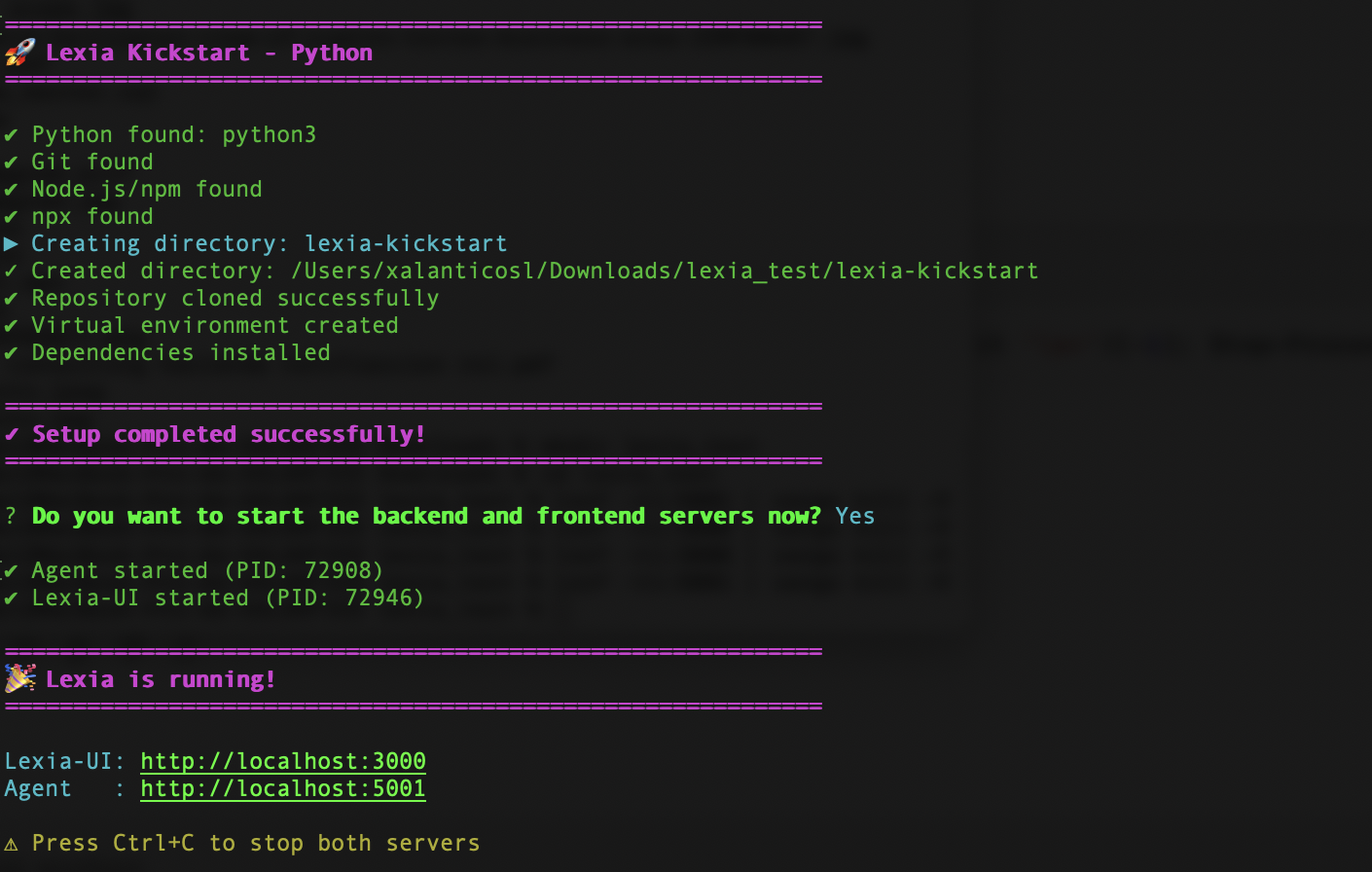
Both lexia kickstart python and lexia kickstart node automatically start:
- Agent Backend (default: http://localhost:5001)
- Lexia UI (default: http://localhost:3000)
If you need to skip auto-start, add the --no-start flag:
lexia kickstart python --no-start
# or
lexia kickstart node --no-start
Step 4: Test Your Agent
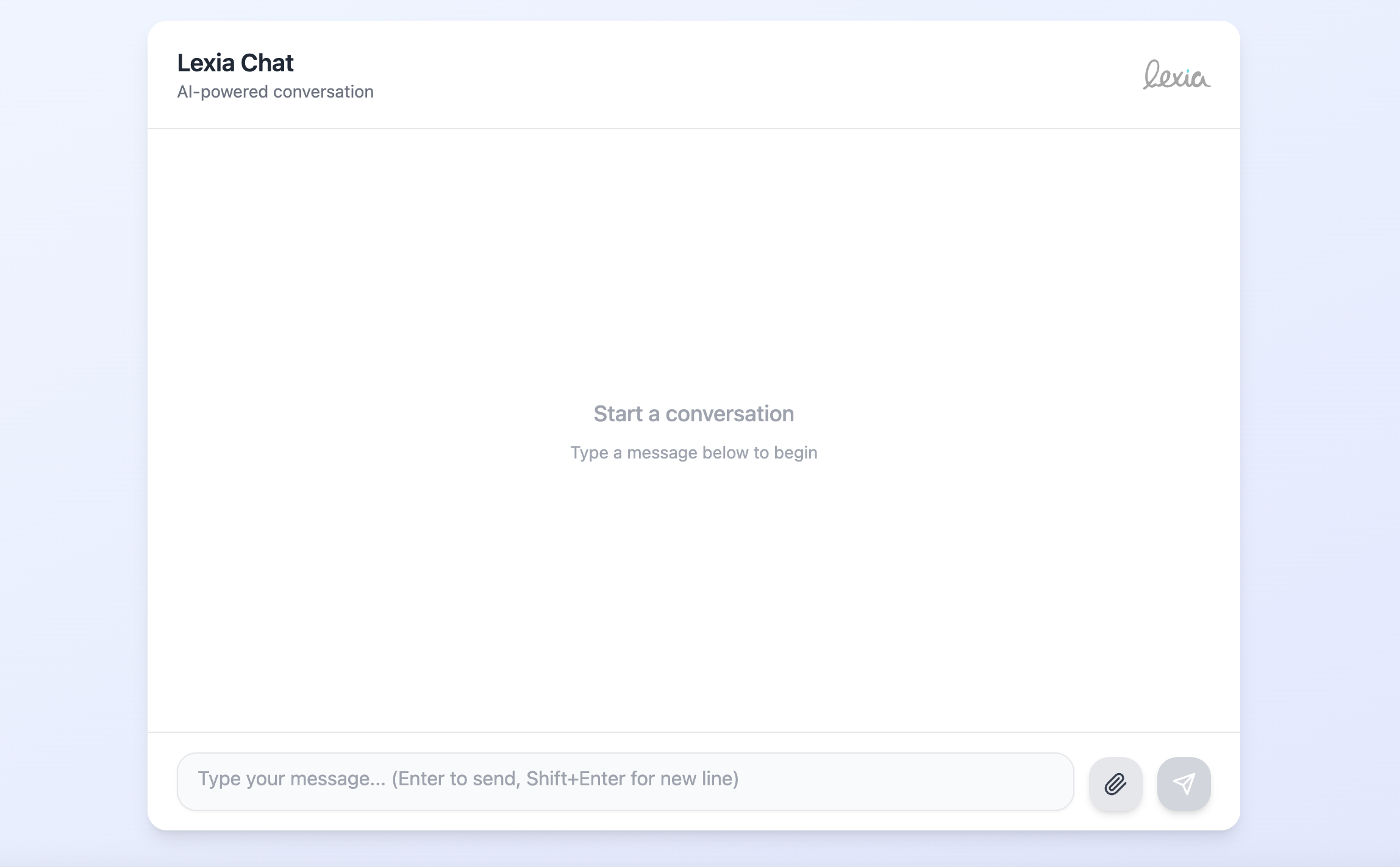
Open your browser and navigate to:
http://localhost:3000
Try sending a message to your agent through the Lexia UI and view the response instantly.
4. Next Steps
Now that your agent runs locally, explore what's next:
- Build Custom Functions - Extend your agent with custom capabilities
- Add a Database - Use
lexia db createto add PostgreSQL database - Deploy to Production - Deploy your agent to Lexia Cloud
Image: Flowchart showing developer progressing from local setup → DB → Guardrail → Deployment
5. Troubleshooting
| Issue | Possible Fix |
|---|---|
lexia login fails | Check your API key permissions |
| "Port already in use" | Stop previous local instance |
| No response from agent | Verify config and network connection |
6. Related Docs
- CLI Reference
- Architecture Overview
- Python Quickstart
- Node.js Quickstart
Image: Screenshot collage showing links to related Lexia docs pages